Introduction
The “Getting Started” section consists of a series of short tutorials. Each tutorial gradually introduces a few concepts to maintain a gentle learning curve. The following initial competencies are assumed:
- Basic Python programming.
- Working with a virtual terminal.
- Editing text files.
Note that the examples in the tutorials are all small and use StepUp
in serial mode (-j 1) and non-interactively.
We believe this offers the best learning experience.
However, StepUp really shines in more complex use cases and when used interactively.
Once you become familiar with StepUp,
you’ll be able to make workflows that would be difficult to manage with other tools.
Tutorial Source Files
Input files for each tutorial are stored in a corresponding subdirectory under
docs/getting_started/
within StepUp Core’s source code.
Each directory contains a script named main.sh,
which simply runs the example in non-interactive mode,
generating the outputs that are included in the documentation.
Basic Usage
To use StepUp, you need to create a plan.py file in the root of your project.
This file defines the steps and files that make up your workflow.
The tutorials in this section explain the basics of how to write a plan.py file.
To execute the workflow, you run StepUp as follows:
or equivalently, the shorter form:
The stepup command provides several subcommands, of which build is the most important.
Run stepup --help to see the full list of subcommands and their options.
Each tool also accepts the --help option to see its own options, e.g. stepup build --help.
StepUp Architecture
The tutorials use terminology defined in the small architecture overview given below. This overview summarizes the internals of StepUp, omitting many details for the sake of clarity. It provides just enough background to get a basic understanding of its core concepts.
Workflow (Graphs)
StepUp keeps track of what it needs to do and what it has already done in a workflow data structure. This workflow is represented by two direct acyclic graphs (DAGs), which comprise the same nodes.
Nodes
The nodes of the graph can be instances of the following two main classes:
-
A
Stepdefines a program that can be executed with all the information for a specific execution: working directory, command, arguments, inputs, outputs, etc. A step can also be in one of the following states:PENDING: The step has not been executed yet. It will be considered for execution when all requirements are met (e.g. input files, named resources, …)RUNNING: The step is currently executing.CHECKING: The step has a stored hash from a previous successful run and is being compared against its current inputs and outputs to determine if execution can be skipped. Named resource restrictions do not apply in this state.SUCCEEDED: The step has been successfully completed.FAILED: The step failed because the subprocess exited with a non-zero exit code, or expected output files were not created.
-
A
Filedefines a path, a role and a state. The role says where the file comes from and is fixed for the duration of a build. (It can change between builds, e.g. after you editplan.py.) The state says where the file is in its lifecycle within that role. OnlyCONFIRMEDandBUILTfiles can be used as inputs to other steps, provided all other requirements are met.- The
STATICrole is for files provided by you, not created by any step. StepUp guarantees they are preserved throughout the build, so they can never be the output of a step.UNCONFIRMED: A transient state that the director resolves toMISSINGorCONFIRMED, once existence has been checked and the file hash has been computed. You don’t need to worry about it.MISSING: The existence check failed.CONFIRMED: The existence check succeeded and the file hash is known.
- The
OUTPUTrole is for files created by a step.PLANNED: The step has not run yet, so the file has no contents to offer.BUILT: The step completed successfully.OUTDATED: The file was built earlier but needs to be rebuilt, typically because the step’s inputs have changed since it last ran.
- The
VOLATILErole is for files created by a step whose contents are not reproducible. They cannot be used as inputs and no hashes are computed for them. They are only registered so that they can be removed when appropriate. This role has a single state of the same name,VOLATILE.
Finally, a file that a step uses as an input but that nothing declares, neither as a static file nor as the output of a step, has no role and is in the
UNDECLAREDstate. It may exist on disk, but StepUp does not know where it came from, so the step that needs it cannot run. Declaring the file resolves this. - The
There are also a few special nodes:
- The
Rootnode is the top-level node, of which there is only one. - A
StaticTreestores a directory name whose contents (also in subdirectories) can only be static files.
Edges
The StepUp workflow has two types of directed edges (arrows) connecting pairs of nodes. Each type of edge is used to define a graph with its own rules and logic.
-
The “dependency graph” consists of “source ➜ sink” edges. This graph shows how information flows as the workflow is executed. A few examples:
- If a step uses a file as its input, it is the sink of that file.
- Likewise, a step is the source of its outputs
The following diagram from the Dependencies tutorial illustrates this type of edge. (Steps are blue ellipses, files are grey rectangles.)

The build algorithm in StepUp will traverse upwards through this graph as it executes the steps, similarly to tup.
-
The “provenance graph” consists of “creator ➜ product” edges. An edge is added to this graph whenever a new node is created. Each (active) node must have one creator, but nodes can have multiple products. Examples include:
- A step is the creator of its output files.
- If a
plan.pydefines new steps, then the./plan.pystep is the creator of the new steps. (The same goes for any other step creating new steps.) - If a step declares a static file, the step is the creator of the static file.
- The initial
plan.pystep has theRootnode as its creator. - Only the
Rootnode is its own creator, making it the top-level node by construction.
The following graph from the Dependencies tutorial illustrates this type of edge. (Steps are blue ellipses, files are grey rectangles, root is an orange hexagon.)

Software Components
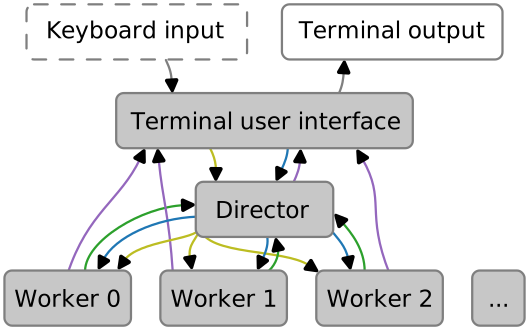
The following diagram illustrates how different components of StepUp interact. Legend:
- White boxes: your fingers and eyes
- Grey boxes: processes
- The terminal user interface is the part of StepUp that you interact with
when you run the
stepupcommand. - The director holds the workflow data structure and is responsible for scheduling steps and watching for file changes.
- Per step, there is a subprocess to execute the step command.
- The terminal user interface is the part of StepUp that you interact with
when you run the
- Brown arrows: standard input and standard output.
- Yellow arrows: startup of subprocesses
- Blue arrows: remote procedure calls to control the director
- Purple arrows: remote procedure calls for progress updates
- Green arrows: remote procedure calls to extend the workflow
Why Two Processes?
The terminal user interface and the director always run together,
so they could in principle be a single process.
They are kept apart because they have conflicting responsibilities.
The interface owns your terminal:
it draws the progress bar, reads your keystrokes,
and hands the terminal back to your shell when the build ends.
The director owns the workflow and never writes to the terminal,
so its own output goes to .stepup/director.log instead
and can never interleave with what you are reading on screen.
Because the two are separate processes,
a director that crashes or gets stuck cannot leave your terminal in an unusable state:
the interface outlives it, cleans up, and tells you what went wrong.
The separation also keeps interactions and measurements meaningful.
Drawing on the screen never competes with scheduling steps and hashing files,
and the resource usage reported at the end of a build covers the director and its steps,
not the cost of rendering.
Moreover, the interface controls the director through the same remote procedure calls
that other subcommands use, such as stepup shutdown and stepup wait.
This makes the interface one of several possible clients of a director,
instead of a layer that every build has to pass through.